
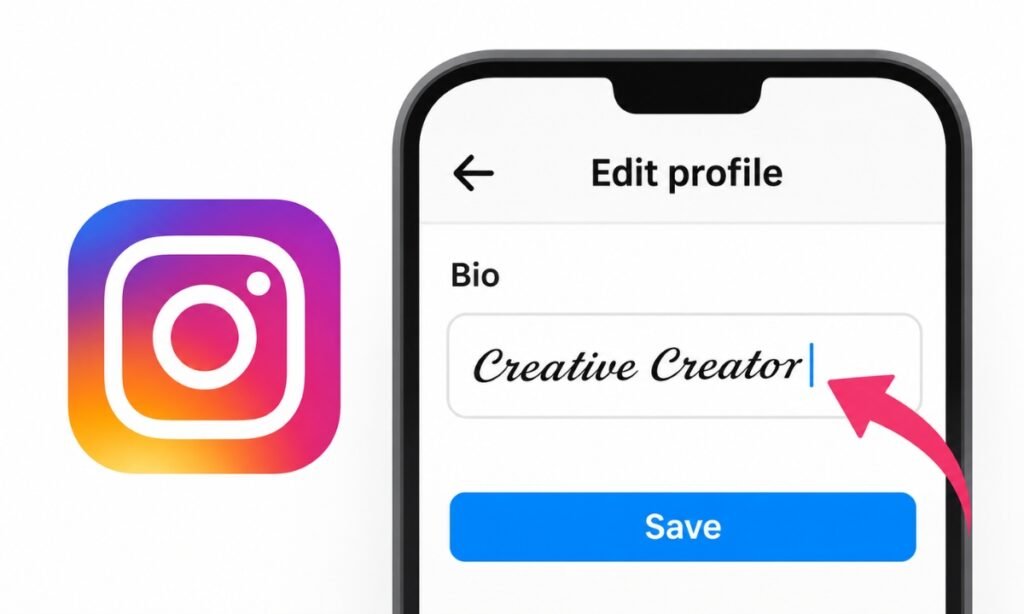
Have you ever opened an Instagram profile and noticed someone’s bio written in beautiful cursive, bold, or stylish letters?
You might have searched through Instagram’s settings looking for the same font options, only to find that there isn’t a regular font-changing button for your bio.
The good news is that you can give your Instagram bio a different look by copying and pasting special text characters. You don’t need to install a keyboard app or change your phone’s settings.
In this guide, you’ll learn how to change font on Instagram bio using your iPhone, Android phone, or computer, along with a few things you should know before choosing a fancy font.
Can You Change the Font in Your Instagram Bio?
Yes, you can make your Instagram bio appear in different font styles, but the standard bio editor doesn’t provide a built-in font picker.
Instead, you can use a Unicode text generator to turn ordinary letters into special characters that resemble bold, italic, cursive, or other decorative fonts.
For example, here’s how the same word can look in different styles:
| Font Style | Example |
|---|---|
| Normal | Hello |
| Bold | 𝐇𝐞𝐥𝐥𝐨 |
| Cursive | 𝓗𝓮𝓵𝓵𝓸 |
| Italic | 𝑯𝒆𝒍𝒍𝒐 |
| Monospace | 𝙷𝚎𝚕𝚕𝚘 |
| Double-struck | ℍ𝕖𝕝𝕝𝕠 |
| Circled | Ⓗⓔⓛⓛⓞ |
These aren’t traditional fonts. They are separate Unicode characters that happen to look like styled letters.
You can learn more about how these characters work in the Unicode Standard’s mathematical symbols documentation.
How to Change Font on Instagram Bio Using a Font Generator?
The easiest method is to use an online fancy text generator. It works through your browser, so you don’t need to download additional software.
Follow these steps:
- Open an online Instagram font generator in your browser.
- Type the words you want to use in your Instagram bio.
- Browse the available font styles, such as bold, cursive, italic, or small caps.
- Copy the styled text you like.
- Open Instagram and visit your profile.
- Select Edit profile, then open the Bio field.
- Paste your copied text and save the changes.
Return to your profile to see how the new text looks.
You can also combine regular text with decorative Unicode letters. For example, keep your introduction readable and use a fancy style only for a short heading.
Tip: You don’t have to change every word. Styling one short phrase often looks cleaner than making your entire bio decorative.
How to Change Instagram Bio Font on iPhone?
If you’re using an iPhone, you can change the appearance of your Instagram bio without installing a special keyboard.
First, open Safari and visit an online Unicode font generator. Enter the words you want to style and copy your preferred version.
Next, follow these steps in Instagram:
- Open the Instagram app on your iPhone.
- Tap your profile picture in the bottom-right corner.
- Tap Edit profile.
- Select Bio.
- Press and hold inside the text field, then tap Paste.
- Tap Done to save your updated bio.
Your new font style should now appear on your profile.
If the letters look unusual or difficult to read, return to the generator and choose a simpler style.
How to Change Instagram Bio Font on Android?
The process is almost identical on Android phones, including Samsung, Google Pixel, and other devices.
Start by opening Chrome or another browser and copying your preferred Unicode text.
Then:
- Launch the Instagram app.
- Tap your profile picture.
- Select Edit profile.
- Open the Bio section.
- Long-press the text field and choose Paste.
- Tap the checkmark or available save button.
Your updated bio should appear after saving.
Some decorative characters may display differently depending on the phone’s operating system and installed fonts. If you see empty squares instead of letters, try another text style.
How to Change Instagram Bio Font on PC or Laptop?
You can also edit your Instagram bio using Windows, Mac, or another computer.
This method is useful when you’re preparing a longer bio and prefer typing with a physical keyboard.
- Open a font generator website in your browser.
- Enter your desired Instagram bio text.
- Copy the generated font style.
- Visit Instagram.com and sign in.
- Open your profile and select Edit profile.
- Find the Bio text field and paste your copied text.
- Click Submit or the available save button.
Check your updated profile once the changes are saved.
You can use Ctrl + V on Windows or Command + V on Mac to paste the copied text.
How to Make Instagram Bio Text Bold or Cursive?
You don’t need to change your entire bio if you only want bold or cursive writing.
For bold text, use a Unicode generator that offers mathematical bold characters. For cursive text, select a script or calligraphic style.
Here are two examples:
Normal bio:
Digital Creator
Sharing creative ideas
New videos every week
Styled bio:
𝐃𝐢𝐠𝐢𝐭𝐚𝐥 𝐂𝐫𝐞𝐚𝐭𝐨𝐫
Sharing creative ideas
New videos every week
You can also use decorative symbols to separate different parts of your bio.
For example:
✦ Digital Creator
♡ Sharing everyday inspiration
→ Explore my latest work
If you want more decorative characters, explore the website’s symbol collection. You can also read our guide on how to type emojis on PC Windows.
Why Is My Instagram Bio Font Not Working?
Sometimes, copied fonts don’t appear correctly or Instagram refuses to save your bio.
Here are a few common reasons and possible fixes.
1. Unsupported Characters
Some fancy text styles contain Unicode characters that your device’s installed fonts cannot display.
Instead of letters, you might see small squares or replacement symbols.
Try a simpler style, such as basic bold letters, and check whether it displays correctly.
2. Instagram Bio Character Limit
Instagram bios have a limit of 150 characters.
If your bio exceeds that limit, you may not be able to save the changes.
Shorten your description and remove unnecessary decorative text. Remember that certain Unicode symbols and emoji can be counted differently from ordinary letters.
3. Copying the Wrong Text
Sometimes, you might accidentally copy the original text instead of the generated version.
Return to the font generator, select the styled output, and copy it again.
Paste the text into your phone’s Notes app first to confirm that you copied the correct characters.
4. Font Changes After Pasting
Some text generators use combining marks or unusual characters that don’t display consistently.
Try another generator style, remove excessive decorative marks, or use standard characters.
You can also check our guide to typing symbols on a keyboard for alternative ways to enter special characters.
Are Fancy Instagram Bio Fonts Safe to Use?
Copying ordinary Unicode text from a website doesn’t require you to provide your Instagram password or connect your account.
However, you should avoid font tools that ask for your Instagram login credentials just to generate styled text.
There are also accessibility concerns.
Some screen readers may announce decorative Unicode characters individually or pronounce their technical names instead of reading them as normal words.
Fancy characters can also make important profile information harder to search, select, or understand.
For this reason, I recommend keeping your name, main description, and important contact details in regular text. Use decorative lettering sparingly for optional headings or short phrases.
Meta’s Instagram bio writing guidance also emphasizes clarity, relevance, personality, and a useful call to action.
FAQs
Can I change my Instagram bio font without an app?
Yes. You can use an online Unicode font generator in your browser, copy the generated text, and paste it into your Instagram bio. No additional app is required.
Can I use different fonts in my Instagram username?
Instagram usernames have character restrictions, so decorative Unicode alphabets generally cannot be used in your @username. Your display name and bio are separate fields and may accept styled Unicode text.
Why do Instagram bio fonts look different on other phones?
Different devices may use different fonts to display Unicode characters. A particular letter might appear correctly on one phone but look different or display as a box on another.
Can I change the font back to normal?
Yes. Open Edit profile, select Bio, remove the decorative characters, and type your text using your regular keyboard. Save your changes to restore a normal-looking bio.
Conclusion
Changing the appearance of your Instagram bio font is simple once you know the copy-and-paste method.
Choose a readable Unicode style, copy your text, and paste it into the Bio field through Instagram’s profile editor.
You can experiment with bold, cursive, or decorative lettering, but keep the important parts of your profile easy to read.
A well-written bio with a small amount of styling will usually serve your visitors better than one filled entirely with fancy characters.