
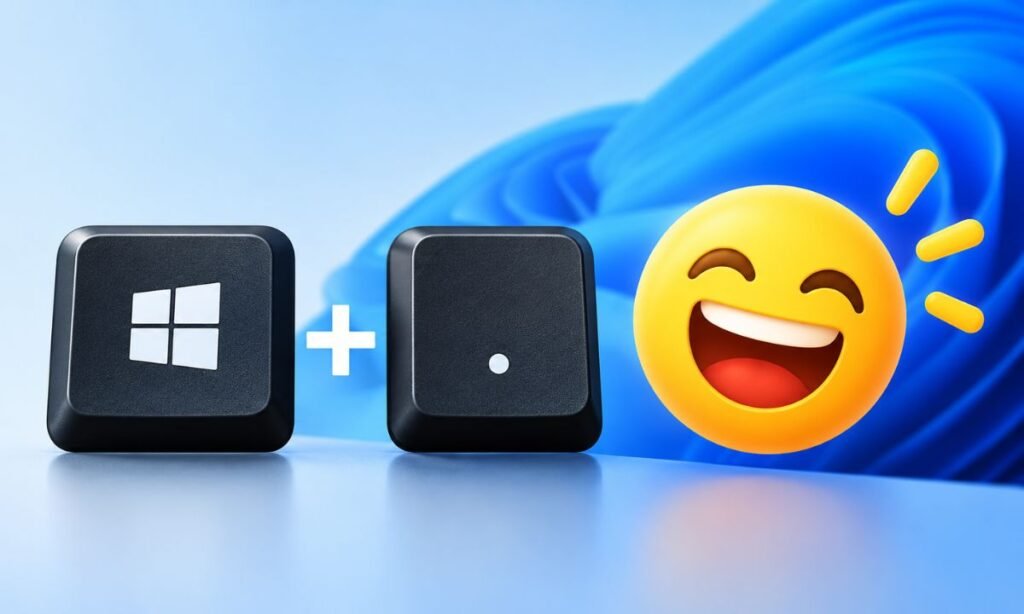
Want to add a laughing face 😂, heart ❤️, or thumbs-up 👍 while typing on your Windows computer? You don’t need to copy emojis from websites or install a separate app every time.
Windows 10 and 11 have a built-in emoji keyboard that lets you insert emojis with a simple shortcut. Older versions, including Windows 8 and 7, have different options.
In this article, you’ll learn how to type emojis on Windows using keyboard shortcuts, the emoji panel, and other easy methods that work across different Windows versions.
What Is the Keyboard Shortcut for Emojis on Windows?
The quickest way to open the emoji keyboard on Windows 10 and 11 is to press:
Windows key + . (period)
You can also use:
Windows key + ; (semicolon)
Both shortcuts open the built-in Windows emoji panel in supported versions.
To insert an emoji, click inside a text field, press the shortcut, and choose an emoji from the panel.
You can use this method in Microsoft Word, Notepad, web browsers, email applications, and many other programs that support emoji characters.
Here’s a quick comparison of emoji typing methods across Windows versions.
| Windows Version | Emoji Typing Method |
|---|---|
| Windows 11 | Windows + . or Windows + ; |
| Windows 10 | Windows + . or Windows + ; |
| Windows 8/8.1 | Touch keyboard emoji button |
| Windows 7 | Copy and paste emojis |
Note: The emoji panel shortcut was introduced with Windows 10 version 1709. Older Windows 10 builds may require the touch keyboard instead.
How to Type Emojis on Windows 11
Windows 11 includes a modern emoji panel that gives you access to emojis, GIFs, kaomoji, and special characters.
You can insert these directly into supported applications without opening another website.
Method 1: Use the Emoji Keyboard Shortcut
Follow these steps to open the emoji panel on Windows 11.
- Open an application where you want to type.
- Click inside a text field or document.
- Press Windows + . (period) on your keyboard.
- The emoji panel will appear near your cursor.
- Browse the available emojis or search for a specific one.
- Click the emoji you want to insert.
For example, type “smile” in the search box to find smiling faces.
You can also search for words like “heart,” “fire,” “thumbs up,” or “party.”
The selected emoji appears where your text cursor is positioned.
Method 2: Use the Windows 11 Touch Keyboard
If you prefer clicking instead of using keyboard shortcuts, Windows 11 also provides a touch keyboard.
- Right-click an empty area of your taskbar.
- Select Taskbar settings.
- Find the Touch keyboard option under System tray icons.
- Set it to Always or another available setting that displays its icon.
- Click the touch keyboard icon on your taskbar.
- Select the emoji button and choose your preferred emoji.
This method is especially convenient for touchscreen laptops and Windows tablets.
You can still use the touch keyboard with a regular mouse.
How to Type Emojis on Windows 10
Windows 10 also has a built-in emoji keyboard, although its appearance differs from Windows 11.
The steps are straightforward and work in most applications that support emoji input.
Method 1: Open the Windows 10 Emoji Panel
- Open Notepad, Microsoft Word, or another text application.
- Place your cursor where you want to insert an emoji.
- Hold the Windows key and press . (period).
- Wait for the emoji panel to appear.
- Select your preferred emoji.
You can also press Windows + ; (semicolon) to open the panel.
The search feature helps you find emojis without scrolling through every category.
For example, searching for “cat” displays available cat-related emojis.
Method 2: Use the Windows 10 Touch Keyboard
If the shortcut isn’t working, try the touch keyboard.
- Right-click your Windows taskbar.
- Select Show touch keyboard button.
- Click the keyboard icon near the system tray.
- Select the smiley-face or emoji key.
- Browse the available categories and click an emoji.
The touch keyboard provides another way to insert emojis without memorizing keyboard shortcuts.
Important: Windows 10 reached the end of its regular support on October 14, 2025. Its emoji features still work, but supported Windows versions are preferable for ongoing security updates.
How to Type Emojis on Windows 8 and 8.1
Windows 8 and 8.1 don’t support the modern Windows + period emoji panel found in newer versions.
However, they include a touch keyboard that can be used for emoji input.
Follow these steps:
- Right-click an empty area of your taskbar.
- Open the Toolbars menu.
- Select Touch Keyboard.
- Click the touch keyboard icon that appears on the taskbar.
- Find the smiley-face key.
- Select an emoji category and choose the character you want.
You can use this method in compatible text fields and applications.
Windows 8.1 also introduced color emoji support, whereas Windows 8 primarily displayed supported emoji characters in black and white.
Because these older systems support fewer emojis, some newer characters might not display correctly.
How to Type Emojis on Windows 7
Windows 7 doesn’t include the modern emoji picker or the emoji-enabled touch keyboard available in newer Windows versions.
However, you can still use certain emojis through copying and pasting.
Copy and Paste Emojis
- Open a website or document containing emojis.
- Find the emoji you want to use.
- Highlight the emoji with your mouse.
- Press Ctrl + C to copy it.
- Open your document or message.
- Press Ctrl + V to paste it.
For example, try copying these emojis:
Click any symbol to copy it
Keep in mind that Windows 7 has limited emoji font support. Some characters may appear in black and white, as empty boxes, or not at all.
Microsoft released a Segoe UI Symbol font update that added support for certain emoji characters, but it doesn’t provide the same functionality as modern Windows versions.
How to Type Emojis Without a Keyboard Shortcut
You don’t always need to use Windows + period to insert emojis.
If your keyboard shortcut is unavailable or you want to reuse a specific emoji, copying and pasting is a simple alternative.
Here are some commonly used emojis.
| Emoji | Meaning |
|---|---|
| 😀 | Grinning Face |
| 😂 | Face With Tears of Joy |
| ❤️ | Red Heart |
| 👍 | Thumbs Up |
| 😊 | Smiling Face |
| 🎉 | Party Popper |
| 🔥 | Fire |
| 😎 | Smiling Face With Sunglasses |
| ✅ | Check Mark |
| 💻 | Laptop |
Select the emoji you want, copy it using Ctrl + C, and paste it wherever needed.
This method is useful when you’re using an older operating system or an application with limited emoji support.
How to Type Emojis in Microsoft Word
Microsoft Word supports emojis in documents on compatible Windows systems.
To insert one:
- Open your Microsoft Word document.
- Click where you want the emoji.
- Press Windows + . (period).
- Search for an emoji or browse the categories.
- Click the emoji to add it.
You can also copy emojis from another source and paste them into your document.
If the emoji appears in black and white, check your Word version, font, and application support.
The emoji may also look different when the document is opened on another device.
How to Type Emojis in Google Chrome
Google Chrome supports emoji characters in text fields, including search boxes, social media posts, and web-based applications.
On Windows 10 or 11:
- Open Google Chrome.
- Click inside a supported text field.
- Press Windows + . (period).
- Select an emoji from the Windows panel.
- Continue typing normally.
The same Windows shortcut also works in many text fields in Microsoft Edge and Firefox.
Some websites provide their own emoji picker, so you can also use that option when available.
How to Find and Search for Emojis on Windows
If you can’t find a particular emoji, the search feature can save time.
Press Windows + . and enter a descriptive word in the emoji panel’s search field.
For example, search for “laugh” to locate laughing emojis or “food” to find food-related characters.
You can also browse categories, including faces, animals, objects, food, and symbols.
Windows 11 provides additional options for GIFs and kaomoji.
Kaomoji are text-based expressions such as:
Click any symbol to copy it
Unlike regular emojis, kaomoji use combinations of characters to create expressions.
How to Change Emoji Skin Tone on Windows
Some emojis support different skin tone variations.
These include hand gestures and certain people-related emojis.
To choose a variation:
- Open the Windows emoji panel.
- Find an emoji that supports skin tones.
- Look for its skin tone options or variation selector.
- Select the appearance you prefer.
- Insert the emoji into your text.
The available selection controls depend on your Windows version.
Not every emoji supports skin tone changes, and some variations may be unavailable on older systems.
Why Is the Emoji Keyboard Not Working on Windows?
Sometimes pressing Windows + period doesn’t open the emoji panel.
Several common issues can cause this.
Check Your Windows Version
The emoji shortcut requires a compatible version of Windows.
If you’re using Windows 7, 8, 8.1, or an early Windows 10 build, the shortcut won’t work.
Use the touch keyboard where supported or copy and paste emojis instead.
Make Sure the Windows Key Works
Try pressing Windows + E to open File Explorer.
If nothing happens, your Windows key might be disabled or blocked by your keyboard’s gaming mode.
Check your keyboard settings before trying the emoji shortcut again.
Click Inside a Text Field
Some applications don’t support emoji input.
Open Notepad or another standard text editor, click inside the document, and try the shortcut again.
If it works there, the issue may be related to the original application.
Restart Your Computer
If the emoji panel previously worked but suddenly stopped opening, restart Windows.
A restart may resolve temporary problems affecting keyboard shortcuts or text input.
Why Are Emojis Showing as Boxes on Windows?
If you see empty squares instead of emojis, the application or system may not support those characters.
This commonly happens with older Windows versions, outdated software, or fonts that lack the necessary emoji characters.
Try using a modern browser or another application.
You can also test the emoji in Notepad or Word to determine whether the problem affects only one program.
Remember that some emojis look different depending on the operating system and application used to display them.
Frequently Asked Questions
How do I open the emoji keyboard on Windows?
Press Windows + . (period) or Windows + ; (semicolon) on Windows 10 or 11. The built-in emoji panel opens, allowing you to search for and insert emojis into supported text fields.
Can I type emojis on a Windows laptop?
Yes. Windows laptops use the same emoji shortcuts as desktop computers. Press Windows + period to open the emoji panel. You don’t need a numeric keypad, touchscreen, or external software.
Can I use emojis in Windows without installing anything?
Yes. Windows 10 and 11 include a built-in emoji panel, while Windows 8 and 8.1 provide emoji input through the touch keyboard. On Windows 7, you can copy and paste supported characters.
Final Thoughts
Typing emojis on Windows is easy once you know which method works with your operating system.
For Windows 10 and 11, pressing Windows + . (period) is the fastest way to access the emoji keyboard. Windows 8 and 8.1 users can use the touch keyboard, while Windows 7 users can copy and paste supported emojis.
Whether you’re writing emails, creating documents, or chatting online, these methods let you add emojis without installing extra software.