
Have you ever seen a cute cat, heart, or decorative pattern made entirely from keyboard characters and wondered how people create them?
You might think these designs require special drawing software, but you can make most of them using ordinary letters, punctuation marks, and Unicode symbols.
Whether you want to decorate your Instagram bio, send a creative WhatsApp message, or make something unique for your profile, text art gives you plenty of possibilities.
In this guide, you’ll learn how to make text art with symbols step by step, which characters work best, and how to copy ready-made designs.
What Is Text Art With Symbols?
Text art is a way of creating pictures, shapes, and decorative designs by arranging text characters instead of drawing with traditional graphics.
You can use ordinary keyboard characters such as brackets, slashes, asterisks, and underscores, or special Unicode symbols such as hearts, stars, and box-drawing characters.
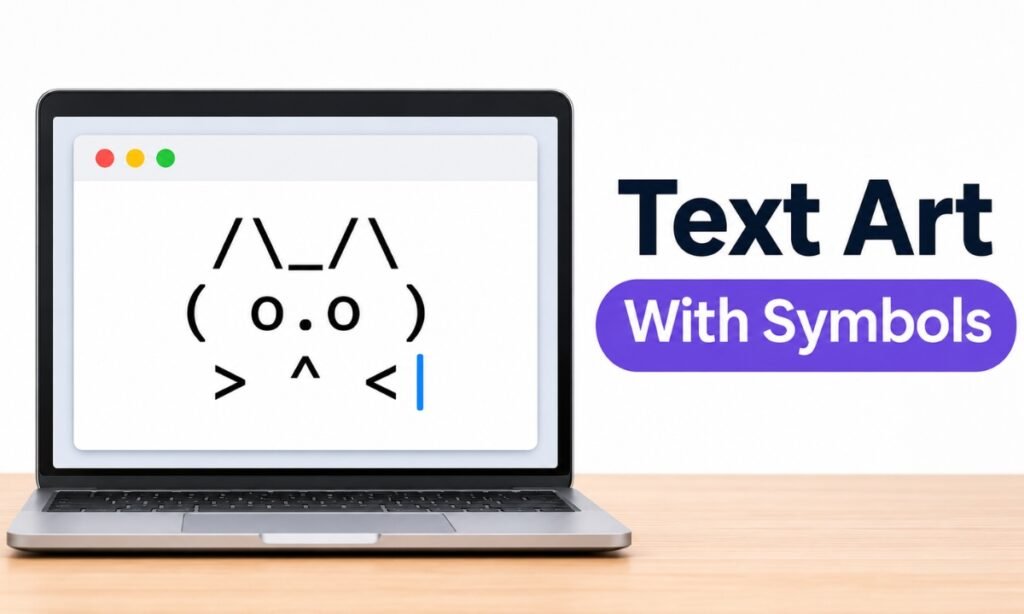
For example, a simple cat made with keyboard characters looks like this:
 /\_/\
( o.o )
 > ^ <
This is a form of ASCII art because it uses characters from the ASCII character set.
Unicode text art, on the other hand, can include a wider variety of characters.
For example:
✦ ───── ♡ ───── ✦
Both styles are useful, but Unicode gives you more decorative options.
According to the Unicode Standard, Unicode includes many graphical characters, including box-drawing symbols, geometric shapes, and Braille patterns.
How to Make Text Art With Symbols Step by Step
You don't need to be an artist or understand coding to make simple text art.
The easiest approach is to start with a small design and gradually add characters.
Step 1: Choose a Simple Design
Start by deciding what you want to create.
For beginners, hearts, cats, flowers, stars, and decorative borders are good choices because they require relatively few characters.
For example, you could create a small heart using asterisks:
 ** **
*******
 *****
  ***
   *
Avoid complicated pictures at first. The more lines your design contains, the harder it becomes to maintain the correct spacing.
Step 2: Select Your Symbols
Choose characters that match the shape you're creating.
Here are a few useful options:
| Symbol | Common Use |
|---|---|
| * | Outlines and filled shapes |
| / | Diagonal lines |
| ( ) | Rounded shapes and faces |
| _ | Horizontal lines |
| ♥ ♡ | Hearts and decoration |
| ★ ☆ | Stars |
| ─ │ | Borders and dividers |
| ● ○ | Dots and circular patterns |
You can browse more characters on Cute Symbols to Copy Paste and copy the symbols you need.
You can also explore our how to type special characters on keyboard to learn how to write different characters.
Step 3: Open a Text Editor
You can create text art using Notepad, a code editor, or another application that lets you type and arrange characters.
For multiline designs, choose a monospaced font such as Consolas, Courier New, or Menlo.
In a monospaced font, characters have consistent widths, making it easier to line up symbols vertically.
For example, a carefully arranged drawing may become distorted when you paste it into an application that uses proportional fonts.
Step 4: Arrange the Symbols
Start with the outline of your design before adding smaller details.
Use spaces to position characters and create the desired shape.
For example, here's a simple house:
    /\
   /  \
  /____\
  | [] |
  | __ |
  ||  ||
  ||__||
Each row contributes to the overall picture.
If something looks uneven, add or remove spaces until the lines align correctly.
Avoid using the Tab key for precise spacing because tab widths can vary between applications.
Step 5: Copy and Share Your Text Art
Once you're happy with the design, select all its characters, including spaces and line breaks.
Copy it using Ctrl + C on Windows or Command + C on Mac.
Then paste it into your chosen application.
For multiline designs, preview the result before sharing. Some apps change line spacing or wrap longer lines, which can affect the final appearance.
Easy Text Art Examples You Can Copy and Paste
If you're new to creating symbol art, experimenting with ready-made examples can help you understand how different characters work together.
Here are several simple designs.
Cute Cat Text Art
 /\_/\
(=^.^=)
(")(")_
This design uses slashes, brackets, and punctuation marks to create a small cat.
Heart Text Art
  **   **
 **** ****
***********
 *********
  *******
   *****
    ***
     *
The heart uses asterisks and carefully placed spaces to create its outline and filled shape.
Smiling Face Text Art
  _______
 /       \
|  o   o  |
|    ^    |
|  \___/  |
 \_______/
You can change the expression by adjusting the eyes and mouth.
Decorative Text Divider
✦ ───── ♡ ───── ✦
This single-line design is suitable for separating short sections of text in profiles or messages.
Cute Flower Pattern
   \ | /
 --  *  --
   / | \
     |
     |
Simple shapes like this are useful for practicing symmetry and spacing.
How to Make Cute Text Art With Hearts and Stars
You can make decorative text art using Unicode symbols without constructing a complicated multiline picture.
This is particularly useful for social media bios, usernames' surrounding text, and short messages.
For example:
♡ ˚₊‧ ✧ ‧₊˚ ♡
Or:
★彡 Your Name 彡★
To create your own design, start with a short word or phrase and place matching symbols on both sides.
You can combine filled and outlined characters to make the design more interesting.
For example, use a filled star with smaller outlined stars rather than repeating the same symbol throughout.
If you're decorating a social media profile, keep the design short so it doesn't overwhelm your actual information.
You may also find our guide to changing fonts in an Instagram bio useful when combining fancy letters with decorative symbols.
How to Make Text Art Using an Online Generator
Creating every character manually can become time-consuming, especially for larger designs.
Online text art generators can help you produce decorative text or convert words into character-based artwork.
The exact process depends on the generator.
Generally, you'll need to:
- Open an online ASCII art or text art generator.
- Enter a short word or phrase.
- Choose an available text art style.
- Preview the generated design.
- Copy the result.
- Paste it into your intended application.
Some generators create large letters from smaller characters, while others turn uploaded images into text-based pictures.
These are different functions, so choose a generator that supports the result you want.
If your goal is simply to make a decorative username or message, a fancy text generator may be enough.
For pictures made from multiple lines of characters, look for an ASCII art generator instead.
How to Make Text Art for Instagram and WhatsApp
Text art can make messages and profiles more visually interesting, but different platforms display it differently.
Text Art for Instagram
Instagram bios are relatively narrow and don't provide the same layout controls as a code editor.
For this reason, short single-line designs are usually more reliable than large multiline pictures.
For example:
♡ Creative Soul ♡Or:
✦ Dream • Create • Repeat ✦Copy your preferred design and paste it into the Bio field under Edit profile.
Keep important profile information readable, and check how the result appears on another device if possible.
Text Art for WhatsApp
WhatsApp allows you to paste text art directly into conversations.
For simple one-line designs, copy the symbols and paste them into the message field.
For multiline ASCII art, you can try WhatsApp's monospace formatting by surrounding the text with three backticks at the beginning and end.
This can help preserve the appearance of some designs, although long lines may still wrap on smaller screens.
You can also experiment with invisible Unicode characters for spacing, but their width and rendering aren't always consistent.
Why Does Text Art Look Broken After Copying?
Sometimes, your design looks perfect in a text editor but becomes uneven after you paste it somewhere else.
There are several possible reasons.
Different Font Widths
Many applications use proportional fonts, meaning characters have different widths.
A multiline design built in a monospaced font may lose its alignment in these applications.
Use a fixed-width font whenever the destination supports it.
Missing Spaces
Spaces are part of the design, not just empty areas.
If an application removes leading spaces or collapses repeated whitespace, the picture may shift.
Try using a code block or a preformatted text area when available.
Automatic Line Wrapping
A design that's too wide for a phone screen may automatically wrap onto additional lines.
Keep your artwork narrow, especially when creating something for messaging applications.
Unsupported Unicode Characters
Some decorative symbols may not display correctly on every device.
If you see empty boxes or unexpected characters, replace them with more commonly supported symbols.
You can also save your text art as an image if preserving its exact appearance is more important than keeping it copyable.
FAQs
Can I make text art without special software?
Yes. You can create basic ASCII and Unicode text art using a regular text editor. All you need are keyboard characters, appropriate symbols, and careful spacing.
What is the difference between ASCII art and Unicode text art?
ASCII art uses basic ASCII characters such as letters, numbers, and punctuation. Unicode text art can include a much larger collection of symbols, including hearts, stars, geometric shapes, and box-drawing characters.
Can I make text art on my phone?
Yes. You can create small designs using your phone's keyboard and copy additional symbols from a website. Large multiline artwork can be harder to arrange because mobile screens are narrow.
Why does my ASCII art change after pasting?
The destination may use a proportional font, remove spaces, or wrap long lines. Using monospace formatting and keeping designs narrow can help preserve their appearance.
Conclusion
Making text art with symbols is a creative way to turn ordinary characters into pictures, decorative patterns, and personalized messages.
Start with small shapes, experiment with different symbols, and use a monospaced font when creating multiline designs.
You can also copy ready-made text art and customize it by changing individual characters or adding your own words.
With a little practice, you'll be able to create unique symbol designs without needing any drawing software.