
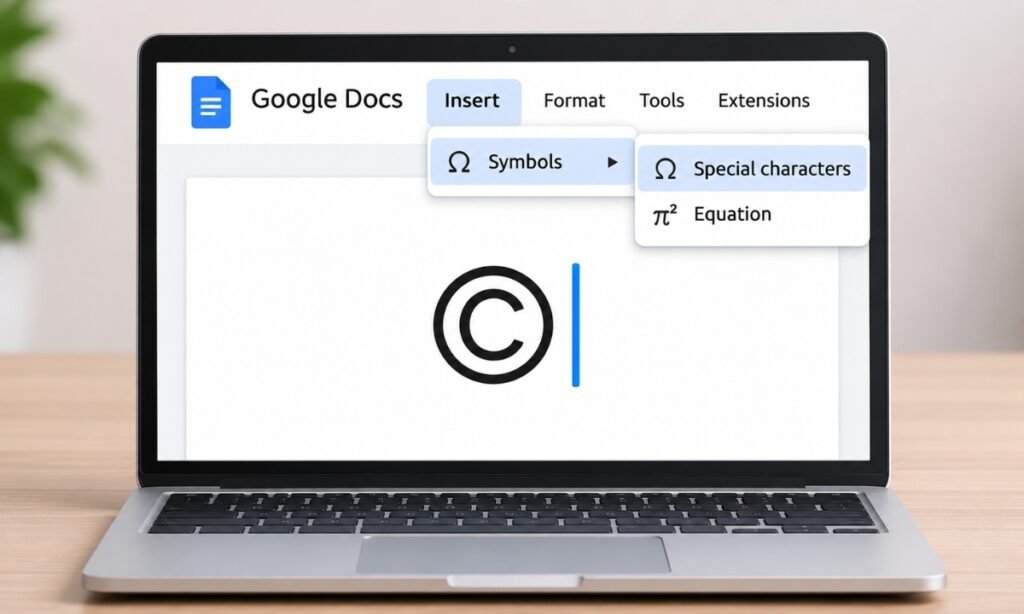
Have you ever needed to add a degree sign, copyright symbol, arrow, or mathematical character to your Google Docs document but couldn’t find it on your keyboard?
You might try searching through the toolbar or typing different keyboard combinations, only to discover that the symbol you need is nowhere to be found.
Fortunately, Google Docs has a built-in special character tool, and you can also insert symbols using copy and paste, keyboard shortcuts, or Unicode values.
In this guide, you’ll learn how to insert symbols in Google Docs on Windows, Mac, Chromebook, Android, and iPhone. I’ll also show you how to find uncommon characters and create shortcuts for symbols you use frequently.
How to Insert Symbols in Google Docs Using Special Characters
The easiest way to insert symbols in Google Docs is through its built-in Special characters tool. It includes mathematical symbols, arrows, currency signs, Greek letters, and many other characters.
You don’t need to install any extensions or additional software to use it.
Follow these steps:
- Open your document in Google Docs.
- Place your cursor where you want the symbol to appear.
- Click Insert in the top menu.
- Hover over Symbols and select Special characters.
- Browse the available characters or use the search box to find a specific symbol.
- Click the symbol you want to insert into your document.
The character will appear at your cursor’s position. You can continue adding symbols without repeatedly opening the menu.
According to Google’s official documentation, the Special characters tool also lets you find characters by category, Unicode value, or drawing.
Tip: If you frequently use the same symbol, you can copy it from your document and paste it wherever you need it again.
How to Find Symbols by Name or Drawing in Google Docs
Sometimes, you might recognize a symbol but have no idea what it’s called. Instead of browsing through hundreds of characters, you can use Google Docs’ search and drawing features.
Search for Symbols by Name
Open Insert → Symbols → Special characters and use the search field.
For example, you can search for:
- Copyright to find ©
- Degree to find °
- Arrow to locate directional arrows
- Infinity to find ∞
- Greek alpha to find α
Search results will show matching characters. Click the one you need to add it to your document.
This method is particularly useful when you know a symbol’s name but can’t remember how to type it.
Draw a Symbol to Find It
If you don’t know the name, you can draw an approximate version of the character.
Open the Special characters window and locate the drawing area on the right.
Use your mouse or trackpad to sketch the symbol you’re looking for. Google Docs will suggest characters that resemble your drawing.
For example, you could draw a heart, arrow, or mathematical sign and look through the suggested matches.
Your drawing doesn’t need to be perfect, but a recognizable shape will help you find more relevant results.
How to Insert Symbols in Google Docs by Copy and Paste
Copying and pasting is often faster than searching through menus, especially when you need decorative symbols, emojis, or characters that aren’t available on your keyboard.
You can find thousands of ready-to-copy characters on Cute Symbols to Copy Paste.
Here’s how to use them:
- Open a symbol collection in your browser.
- Find the character you want.
- Copy the symbol.
- Return to your Google Docs document.
- Place your cursor in the correct position.
- Press Ctrl + V on Windows or Command + V on Mac.
The copied symbol should appear immediately.
Here are some common symbols you can copy:
| Symbol | Name |
|---|---|
| © | Copyright |
| ® | Registered trademark |
| ™ | Trademark |
| ° | Degree |
| ± | Plus-minus |
| ≠ | Not equal |
| ∞ | Infinity |
| ✓ | Check mark |
| → | Right arrow |
| € | Euro |
| ♥ | Heart |
| ★ | Star |
You can also use this approach to add multiple symbols to your document without repeatedly opening the Special characters window.
Click any symbol to copy it
For more ways to enter characters, read our guide to typing symbols on a keyboard.
How to Insert Symbols in Google Docs Using Keyboard Shortcuts
Keyboard shortcuts can save time when you’re working with frequently used symbols, but the available combinations depend on your operating system.
On Windows
Windows supports Alt codes for certain characters, typically using the numeric keypad.
For example:
| Symbol | Windows Alt Code |
|---|---|
| © | Alt + 0169 |
| ® | Alt + 0174 |
| ° | Alt + 0176 |
| ± | Alt + 0177 |
| µ | Alt + 0181 |
To use an Alt code, enable Num Lock if required, hold down Alt, enter the numbers on the numeric keypad, and release Alt.
These shortcuts depend on your keyboard layout and application environment. They may not work consistently inside every browser or Google Docs setup.
If an Alt code fails, use the built-in Special characters menu instead.
On Mac
Mac users can type certain symbols with the Option key.
Some useful shortcuts on a US keyboard layout include:
| Symbol | Mac Shortcut |
|---|---|
| © | Option + G |
| ® | Option + R |
| ™ | Option + 2 |
| ° | Option + Shift + 8 |
| € | Option + Shift + 2 |
For other characters, you can open macOS Character Viewer using Control + Command + Space.
Search for a symbol, then select it to insert it into your document.
On Chromebook
Chromebook users can insert symbols using the Google Docs Special characters menu.
This is generally more straightforward than relying on operating-system Unicode shortcuts, which may behave differently inside the Google Docs editor.
Open Insert → Symbols → Special characters, search for the character, and click it.
How to Insert Math Symbols in Google Docs
Google Docs includes a dedicated equation editor for mathematical expressions.
If you’re preparing school assignments, scientific notes, or mathematical formulas, this feature can be more useful than inserting individual symbols.
To use it:
- Open your document.
- Click where you want the equation to appear.
- Select Insert → Symbols → Equation.
- Use the available menus to choose mathematical symbols.
- Type the numbers, variables, or expressions you need.
The equation toolbar provides Greek letters, relations, mathematical operators, arrows, and other symbols.
Google Docs also supports certain equation shortcuts.
For example, inside an equation, type \alpha followed by a space to insert the Greek alpha character.
You can learn more from Google’s official guide to using equations.
For ordinary sentences containing symbols such as ± or °, the Special characters tool or copy-and-paste method is usually simpler.
How to Insert Symbols in Google Docs on Android and iPhone
The Google Docs mobile app doesn’t offer the same built-in Special characters picker found in its desktop version.
However, you can still insert symbols using your phone’s keyboard or by copying characters from another source.
On Android
- Open the Google Docs app.
- Select the document you want to edit.
- Tap the edit icon if the document isn’t already editable.
- Place the cursor where you want the symbol.
- Open your keyboard and tap the symbols key, often labeled
?123. - Choose an available symbol or open additional symbol pages.
You can also long-press certain keys to access accented letters or other characters, depending on your keyboard.
If the character isn’t available, copy it from a symbol website and paste it into your document.
On iPhone or iPad
- Open your document in the Google Docs app.
- Enter editing mode.
- Tap the location where you want the character.
- Open the keyboard and select 123 to view numbers and common symbols.
- Tap #+= if you need additional characters.
For accented letters, press and hold a supported letter to display available variations.
You can also copy special characters from a website and paste them directly into Google Docs.
Google’s mobile special-character guidance confirms that its full Special characters insertion tool is intended for the desktop editor.
How to Create Custom Symbol Shortcuts in Google Docs
If you regularly insert the same special character, typing it manually every time can interrupt your writing.
Google Docs allows you to configure automatic text substitutions on a computer.
For example, you could create a rule that replaces mysymdegree with °.
Here’s how:
- Open Google Docs on your computer.
- Click Tools → Preferences.
- Open the Substitutions tab.
- Enter a unique text sequence in the Replace field.
- Enter the symbol you want in the With field.
- Save the substitution.
When you type the assigned text and complete it with a space in a supported context, Google Docs can replace it with the symbol.
Choose a sequence you wouldn’t normally type to avoid accidental replacements.
Google explains how to manage these settings in its Autocorrect and substitutions documentation.
Why Are Some Symbols Not Showing in Google Docs?
Occasionally, a symbol may display as an empty square, appear different from what you expected, or fail to insert correctly.
Here are several things worth checking.
Unsupported Font
Not every font supports every Unicode character.
If a symbol appears as a square or missing-character box, try a different font with broader character coverage.
Incorrect Shortcut
Keyboard shortcuts vary between operating systems and layouts.
A Windows Alt code won’t necessarily work on a Mac, and laptop keyboards without a dedicated numeric keypad can behave differently.
Use Google’s character picker when a shortcut doesn’t work.
Problems With Copied Text
If you copied a symbol from a website, make sure you selected the actual character rather than an image.
Try pasting the character into a plain-text field first to confirm that it was copied correctly.
You can also insert it directly through the Google Docs Special characters tool.
FAQs
Where is the symbol option in Google Docs?
On a computer, open Google Docs and select Insert → Symbols → Special characters. You can browse categories, search by character name, enter Unicode values, or draw a symbol to find it.
How do I insert a check mark in Google Docs?
Open the Special characters menu and search for “check mark.” Select ✓ or another check mark variation. You can also copy ✓ from this article and paste it into your document.
How do I insert the degree symbol in Google Docs?
You can search for “degree” in the Special characters menu or simply copy ° and paste it. On some Windows keyboards, Alt + 0176 also works.
Can I insert Unicode symbols in Google Docs?
Yes. Google Docs supports Unicode text characters. You can search using a Unicode value in its Special characters picker or copy and paste the character directly.
Conclusion
Google Docs offers several ways to insert symbols, whether you’re adding a simple copyright sign or working with complex mathematical expressions.
For most desktop users, Insert → Symbols → Special characters is the most reliable option. If you need something quickly, copying and pasting the character is often even easier.
On mobile devices, your keyboard and clipboard provide practical alternatives.
Choose the method that fits your workflow, and consider setting up substitutions for characters you use regularly.